The Settings page in the Web UI has settings for both the Web UI and overall server functionality. It also contains an Information page that lists important details of your server, including the license Serial and Seat count, server Version, Host, and Platform. This is useful information when working with support.
The items that are under Settings in the main navigation sidebar have their own dedicated pages. This page details all the items you see when you click on Settings itself, which appear in the sub navigation pane shown below.


Topics
These items are listed in the sub navigation pane of the main Settings window, which is displayed when you click on Settings.
The ✓ ⓘ button at the bottom (next to Save) is used to toggle the verbose information for the various settings on many sub pages and is on by default. The screenshots below are with this information toggled off for brevity.
Remember to click Save when making changes to any settings or they will not be applied in most cases.
General

Here you can set the Color Theme for the Web UI from a selection of choices, which changes the main header bar. Colors of individual Widgets on the Dashboard can be configured per widget but will use the chosen theme by default. If you wish to customize the theme outside of the preset choices contact Support.
You can also rename the Web UI Title and its browser tabs to anything you like for site branding. This name appears in the upper left by the Sassafras Software logo. Remember to click Save to the left to apply your name choice. Browser caching can create refresh issues, so keep that in mind if you're not seeing your change apply as expected.
There are also two options for controlling the login window behavior and retention of login sessions.
Maps


The first option on this pane is for setting the Primary Map for the Maps section as well as the functions mentioned in the setting option. This allows you to override the Default Map Tab.
You can drag and drop a PNG format Logo for use on your Map Floorplans. This will appear in the Models library when editing a Floorplan.
For accessibility needs, you can customize the icon colors for the various availability statuses shown on maps.
By default, we use Open Street Maps for the geographic display on Map Tabs, but you can use Google Maps if you like. Simply obtain a Google Maps API Key (costs may apply) and insert it in this field. Alternately, if you choose to use GIS software to create a custom Tile Layer for Open Street Maps, you can point to your tile server to customize your Maps display.
You can choose to Set the scope when navigating to a Map location page. This will auto set the Scope in the web UI to the last Floorplan you visited so it follows you to other pages. For some this is convenient, others find it troublesome, so it is an option.
You can also choose to Display pop ups when hovering over Map locations. This toggles if you need to click on a marker on the street Map to select the location and show details, or if that automatically pops up on mouse over. This can be more or less convenient depending on the density of your map locations.
Printers

If you use PaperCut in your environment, you can add configuration to pull devices (Printers and virtual Queues) from that service into KeyServer. The fields are well commented, and this is also configurable in KeyConfigure in General Settings. Note that currently only a single PaperCut server is supported, but you may use IPP in your Printer Details to query individual printers.
Compatibility Notice: - PaperCut version 18.3 and higher are fully supported with the settings documented here. Prior to 18.3 we are unable to automatically update the printer status as a key identifier is missing from the printer export. If you manually populate this value in each printer record, then status can be updated. We do not support any version prior to 17 as the needed API does not exist.
- The Service URL should either be http on port 9191 or https on port 9192
- The Printer URL Pattern should likely not be changed, but is here if needed for special configurations
- Enter the name and password of an account that has been granted rights to view all printers.
The account used for pulling printers from PaperCut needs to have certain permissions, but does not need to be a full admin. Configure the account you wish to use in PaperCut under Options -> Admin Rights -> Edit the account in question.


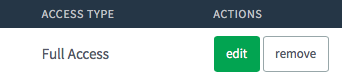
Ensure the account has these permissions:
- Access Dashboard
- Access printers section
- Access devices and site sections
- Access reports section
- Access Central Reports
- The Web Service Auth Token allows certain status information to be pulled. Do not confuse this with the Authorization Key in the Advanced Options.
Log in to your PaperCut server and click on Options
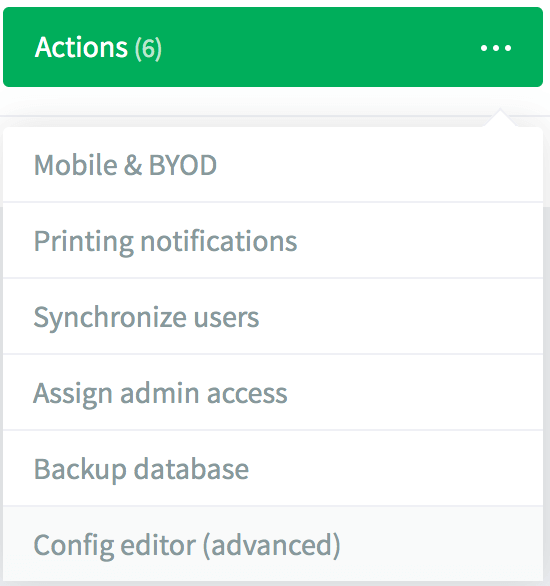
Click in the upper right on the Actions button and choose Config Editor (advanced) from the drop down menu
In the search field enter auth.webservices.auth-token and click the green arrow.

If there is no Value for the auth-token, type one in (make sure it's secure) and click Update. Copy the Value for the token into the configuration field in KeyServer and Save the settings.

Note that you can only set the update frequency in General Settings in KeyConfigure. By default status will be updated every 5 minutes.
PRS

These settings are for managing the communication with the Sassafras Software Product Recognition Service. You can control the time of day these checks occur, perform an immediate contact (handy when trying to get new inventory recognized ASAP, and customize other settings.
See also PRS Settings
Audits

This section allows customization of client and product audits. Client audit frequency is defaulted to 2 weeks, but many sites upon consideration of traffic impact set this to daily for expedient updates of client inventory changes. Once a PRS check (see above) completes relative to a client audit, a Product audit normalizes install counts into our standard definitions and families. You can use the Now button to do this on demand, which can be useful when you're creating a new master system image for deployment for example.
See also Audit Settings
Backups

While infrequently used in an age when server infrastructure is virtual and means you have full VSS level backups, we still provide a traditional file level backup of all local database files. See also Backups. Note that this is disabled entirely for Cloud customers.
Mail

An important part of server service administration is alerting, and in order for scheduled report emails to be sent we need mail settings. Use this section to define when and to whom system alerts and dail status emails are sent, and how email should be relayed.
See also E-Mail Settings
Alarms


Manage the global server alert settings for various thresholds. These will trigger emails to the admin email set in the above mail settings.
The Free Space threshold is exactly that, the free disk space left on the host server.
The Login threshold is usually only a concern in a setting where most computers are constantly in use and may allow for multi user login. Each session consumes a seat, and the total sessions, just like your total Dedicated and Leased Computers, can not exceed your license count or denials will occur.
Sever Capacity alarm levels are for the number of allocated Computer seats relative to your license capacity. Once triggered these will disable and will need to be re-enabled once the seat count has been lowered.
You can set TLS Certificate Alerts to be notified when the SSL cert in use by our web service is going to expire.
Both Purchases and Policies can include an Expiration Date. These are the global settings for those default timers. Purchases can be individually modified in their Details.
See also Alerts.
Account Setup
This section allows configuration of authentication against a directory system or other service for KeyConfigure and Web UI logins. You can choose from a wide selection of Authentication Modules depending on the server platform you are running on. For example, Active Directory is only available when running the server on Windows. Each module has unique settings, but some options are global.
You can decide if Guest browsing should be enabled or if authentication is required to access the Web UI. The External Groups section allows quick and simple mapping of various directory system groups to various default roles. Options include:
- Manager Account - Full administrator rights
- Support Account - Lower permissions appropriate for middle tier IT staff
- Staff Account - Limited permissions appropriate for technical employees outside of IT
- Community Account - Guest level access
- Create Accounts as Needed - This will make accounts in the server and grant them any roles based on external group reference (see Accounts above for more on that aspect). Otherwise they can be manually assigned roles in KeyConfigure after they get created on first login attempt (which will be denied).
- Determine Access on Demand - This will resolve any group membership against roles configured in KeyConfigure and grant access without making a local account in the server.
- Disallow Login - Do not allow the account to log in
You can then choose how to handle Unknown External Logins. This means any account for which there is no simple preset mapping in these options, and no manually created account in Admin Access. Generally you would either Disallow these attempts, or map them to Community so it's the same as if they were a Guest. You can however set this to Create as needed or Determine on demand and use specific Roles pointed to designated external groups to create more complex login assignments.
See also Admin Authentication and Auth Modules
Clients
The main use of client authentication is to enable automatic allocation of computers into Divisions based on directory organization (e.g. replicate OU mapping in AD). Note we do not replicate the entire AD, individual changes are made when a client contacts the server as relates to the division that computer is in. While it can be used to force authentication to the server to get a client session, that is exceedingly rare.
See also Client Authentication
Updates

This page allows you to very easily fetch the latest client installers from Sassafras Software and enable them for client self updates. It will show a green dot in the navigation when updates are available, and you can click Apply to fetch them and activate the update settings.
Ensure you click Save in the main settings list to actually save the configuration changes.
See also Client Self Updates
Computer IDs

Determining how to identify computers is a critical part of initial setup. In recent time Computer Name is the most popular choice as it allows for easily swapping out systems in lab spaces. If names are the same, new computer replace old computer in place in the software. However, you lose the ability to have full lifecycle tracking that way. Serial number can be a good alternative for unique tracking, but some times obscure hardware does not provide the serial very well. MAC address was the old standard, but in recent years external network interfaces has made this problematic as that identifier is now unreliable to be present. The decision of what you use should be well considered before initial client deployment. Note there are further considerations if you have "thin client" services. Changing these on an established server can have notable considerations and you are encouraged to proceed with caution and consult with Support for assistance.
See also Computer ID Types
Columns
On this page you can set default values for various fields used in the Details of Computers, Devices, and Purchases. See Custom Columns and Custom Values pages for full details on defining custom fields, device types, and lifecycle stages.
Logging

In the event of troubleshooting, this section is used to elevate logging levels to assist with diagnostics. The logs are written to the diagnostic.log file in the KeyServer Data Folder on the server. Note that no granular item can record at a higher level than the general setting.
See also Log File Management
Idle Usage

Configure the various global settings for Policy Idle Times.
Miscellaneous

See also the Privacy, Idle, and Misc sections of General Settings
Network


This section allows you to customize the various settings for the TDX ITAM Server Web UI Service (internally known as KeyReporter). Many of these are advance settings and should not be modified unless you are a network admin who understands the implications.
The Hostname setting is the single most important item here, and should always be set to the DNS name you want to use for the web interface. You will need to ensure this is cleanly configured in DNS against the host server, and you obtain an SSL certificate for the host using this same name.
We recommend using the default Ports for HTTP and HTTPS so it is easy to get to the web service. This means no other web server should be running on the same host.
Best practices state Force HTTPS should be enabled. Note some settings are not accessible on an unsecured connection.
If you plan to Embed elements of our service in another web page, or vice versa, you will need to set the proper DNS names in the relevant embed fields to support that. These are space delimited.
See also Web Service Settings
Advanced

Allows for adding custom software license files (vendor provided) and configuration files (Sassafras provided) to the server. Traditionally RDP access to the host server was needed for these additions.
Information

See various information about your server including version, license data, and server platform. Also shows a detailed list of file/folder sizes in the server data folder.