Windows NT
Sites that use Active Directory or Windows NT domains to manage user accounts and privileges can configure KeyServer to relay its authentication queries to this same service using the Windows NT authentication module. All group membership information defined in the Active Directory for the Windows domain will be available to the KeyServer process for use in controlling application access. Because KeyServer must access the information directly from a Windows Domain or Active Directory, this authentication module is only available when the KeyServer process is hosted on a Windows computer. If your KeyServer runs on Mac OS or Linux and you wish to access user and group information from Active Directory, consider using the Kerberos or LDAP modules.
To use this authentication module, you should already be familiar with the basic Active Directory configuration and maintenance for NT Domains.
 |
In order for KeyServer to be able to access the names and passwords, it must operate with the user right “Run as part of the operating system”. This advanced user right can be enabled via the Windows User Manager tool. If your KeyServer runs as a service in the LocalSystem account, that account already has the necessary user rights. |
|
If the Windows NT Guest account is enabled on your NT domain server, any user will be able to logon to KeyServer using any name and password. It is recommended that the Guest account be disabled on your NT server, since this account creates a large security hole for your NT server and for other services that depend upon it. This may require two steps. First, turn the guest account off in the User Accounts Control Panel. Then use the “Local Security Policy” Administrative tool, and edit Security Settings -> Local Policies -> Security Options -> Accounts: Guest Account status. Make sure that this item is set to Disabled. |
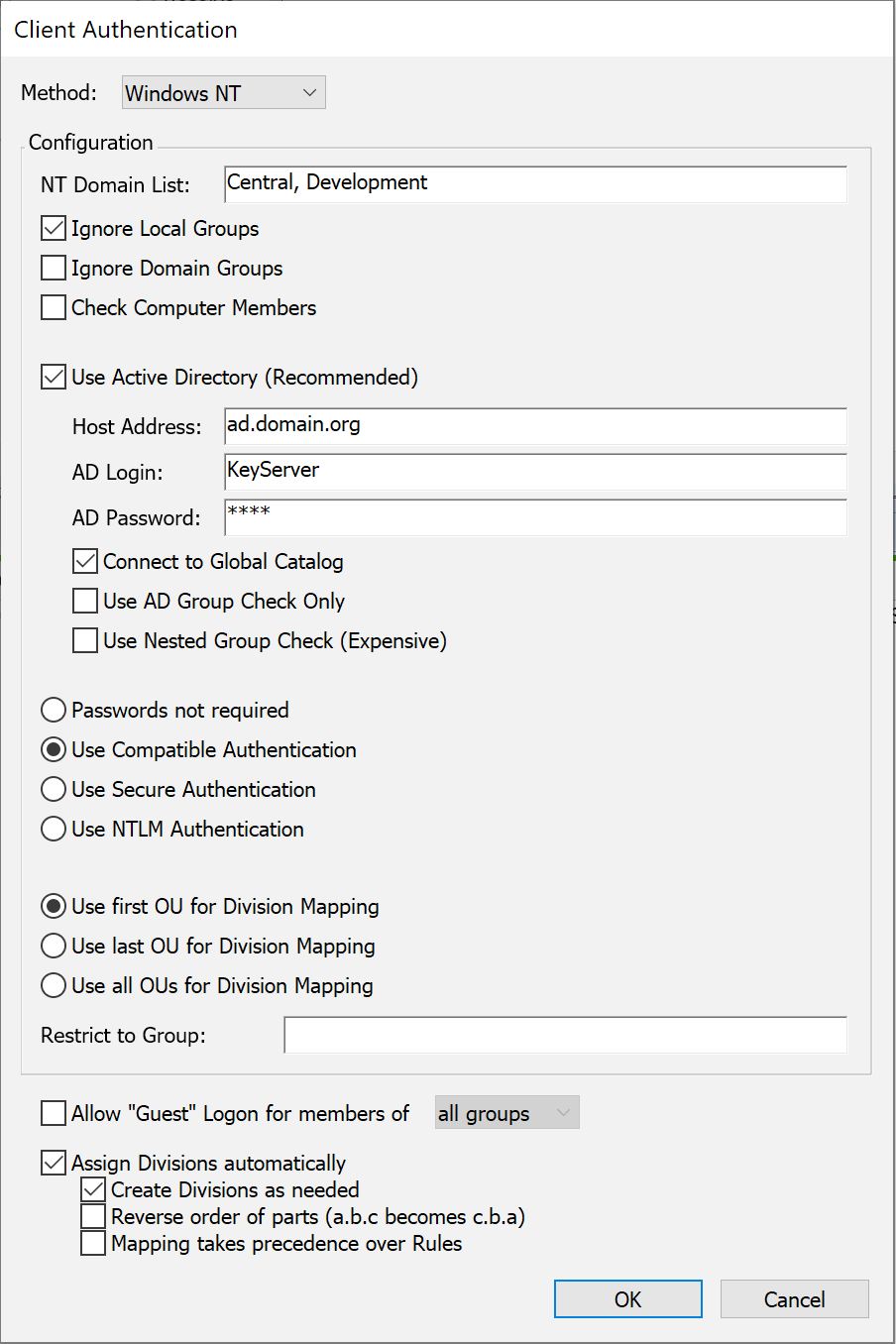
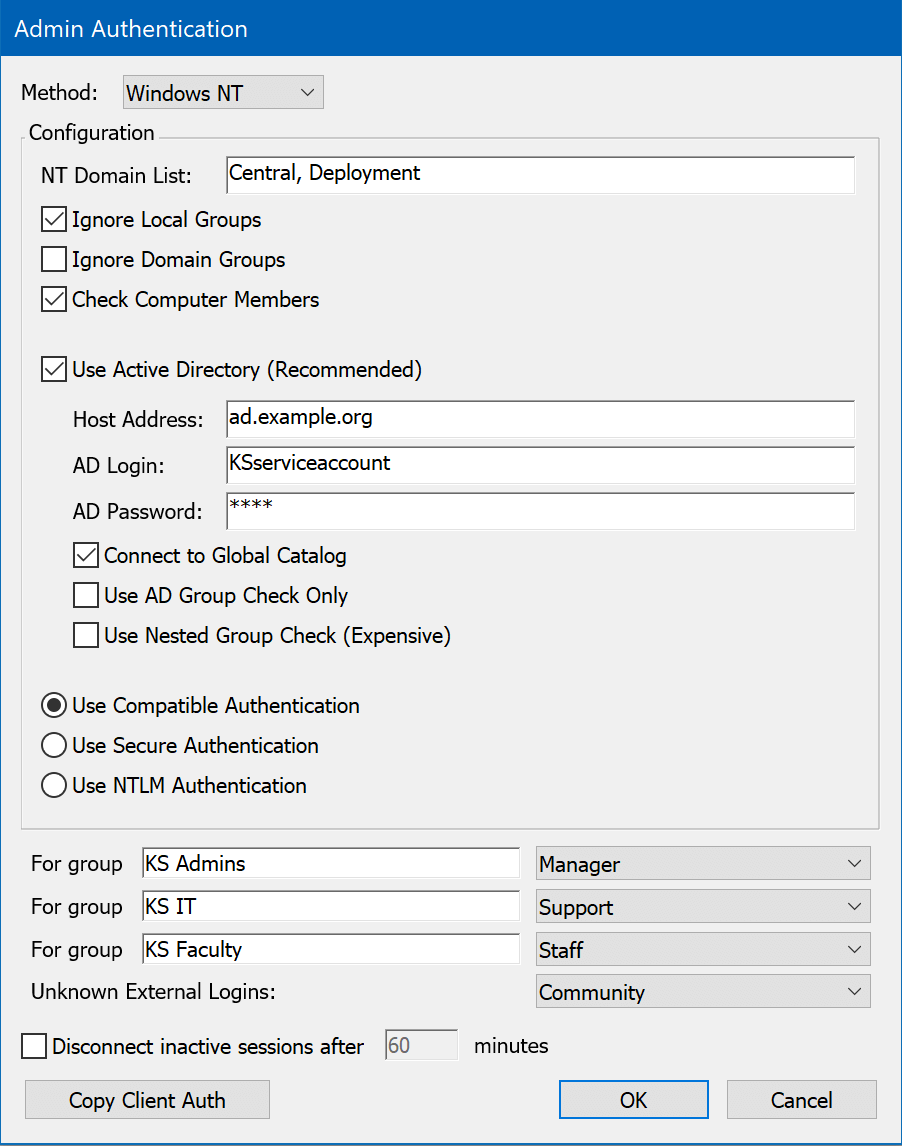
With the Windows NT method selected, enter the name(s) of the domain(s) from which users will be authenticated in the NT Domain List field. If you leave this field blank, the local domain of the KeyServer machine is used. Users may specify the domain they belong to when they login using the standard notation: DOMAIN\name. If the user does not provide a domain, all domains listed in the authentication module configuration dialog will be searched in the order given.
There are four options for password verification:
- Passwords not required
With this option, users will not be prompted for passwords. The current user name of the computer login account is assumed to be correct and authentic, and will be used when checking group memberships.
- Use Compatible Authentication (legacy)
Use this only if you must support very old KeyAccess clients, 5.0.5 or older! By default, such old clients are not permitted to logon to KeyServer. This is not recommended because the password will be conveyed in clear text all the way from client to KeyServer to authentication server. Users will be prompted for their password by KeyAccess once per login.
- Use Secure Authentication
Users will be prompted for their password by KeyAccess when it logs on to KeyServer. To take advantage of “single sign-on” when available, choose the NTLM authentication option instead.
- Use NTLM Authentication
NTLM Authentication supports “single sign-on” for Windows OS versions – Windows 98 , Windows NT 4, and better. These operating systems retain authenticated user account login information so that KeyAccess can make use of the previously validated credentials without itself prompting for a password. For Mac or Linux clients (or old KeyAccess versions), this option falls back to the Secure Authentication behavior – users will be prompted by KeyAccess for a password when it logs on to KeyServer.
Access can be restricted to members of a particular group, as well. If a group name is specified in the “Restrict to Group” field, access will only be granted to users who enter their correct name and password and who also belong to this group.
There are also a few options for how KeyServer determines whether a user is a member of a group. By default, KeyServer will look for groups in both the Local groups (groups stored on the computer that runs KeyServer) and the Domain groups (groups stored in AD or on an NT Domain server). You can disable either or both of these options by checking Ignore Local Groups or Ignore Domain Groups.
Typically, group membership is determined based on the name of the user who is logged in to KeyServer. In addition, the Windows NT authentication module can check for group membership based on the name of the computer from which the user is logged in. To enable this option, check the option "Check Computer Members".
It is recommended that, if possible, you use Active Directory for determining group memberships. Check Use Active Directory and enter the DNS host name or IP address of the Active Directory server, as well as the name and password of an object on the server that has permissions to check group memberships (this means the object must have read rights to the “member” attribute of a group object). The object MUST be qualified with the NT domain, as in "DOMAIN\accountname", or must be in one of the domains listed in the "NT Domain List". This account does NOT have to have admin level privileges.
|
If your Active Directory server runs only in “native” mode and not “mixed” mode, this authentication module cannot retrieve the list of groups from the server. However, you can still use the groups on your AD server simply by typing them into the Scope field in any policies. The group name must be entered as it appears on the AD server (just the group name, not the fully qualified name). After entering a group name in a policy be sure to test launch a program in that policy under an account that is a member of the group so you can be sure that the group name was typed correctly. |
When specifying group names in Policy Detail windows, you can “qualify” the group name with a domain name using the standard notation: DOMAIN\name. This tells KeyServer to look only in that Domain Group for the user. If the group is unqualified (i.e., no Domain is given), then KeyServer will look in each listed domain for a group of that name, and if the group exists, it will be checked for the user.
Active Directory allows for "nested groups", where if group A is a member of group B, then all members of group A are also members of group B. This feature can simplify management of users and groups with Active Directory, but it is also more computationally intensive for programs to check for group membership. Therefore, support for nested groups is disabled by default in this authentication module. If you use nested group in your Active Directory, you can enable KeyServer support for them by checking the "Use Nested Group Check" option. This option is only available when you are using Active Directory to determine group memberships. Lastly, the "AD Login" account described above must have sufficient permission to read the "memberOf" attribute for users and groups.
The Active Directory and Windows NT authentication methods use OUs to determine what division to place a computer in. Within these modules you can choose between using the first, last, or all OUs for for divisions. For example, if a computer has the distinguished name (dn) "cn=computername,ou=sales,ou=northeast,dc=company,dc=com", then:
- Choosing "Use first OU" would result in a division name of "sales"
- Choosing "Use last OU" would result in a division name of "northeast"
- Choosing "Use all OUs" would result in a division name of "sales.northeast"
Note that computers must be in OU containers in order to be mapped to a division. The default configuration of Active Directory places most computers into the Computers container, which is not an OU container. You must create OU containers in your Active Directory and place computers into these containers in order for them to be mapped to Divisions within KeyServer.
The final checkbox in this dialog allows the Administrator to specify which method should be preferred in any conflict between the Division Mapping settings and the Computer Discovery Rules.