Body
If you manage MacOS systems, it’s a good guess that you do so using Jamf. Most likely then, you’ve also deployed KeyAccess using Jamf. There’s an important footnote about URL tracking with our ITAM platform on MacOS. Due to Apple security design, a User is notified of the tracking and allowed to block it, which is problematic for your data collection. Fortunately using a configuration profile you can pre-authorize the tracking on your endpoints.
Note that these directions and screenshots were originally made in the time of Mojave and there may be some slight differences in new Jamf versions.
You can also adapt this information to other deployment services like InTune. We do not supply specific support for any 3rd party platform, only examples to assist you.
Client Deployment
First let’s look at a basic deployment policy for KeyAccess in Jamf. We have uploaded a KeyAccess installer (K2Client.pkg) for the version we want to deploy. Choose whatever Triggers you’d like to use. If you will use the Self Updating featuring for KeyAccess, you might configure Jamf to install just once. If instead you’ll manage new versions of KeyAccess entirely in Jamf you might choose differently.
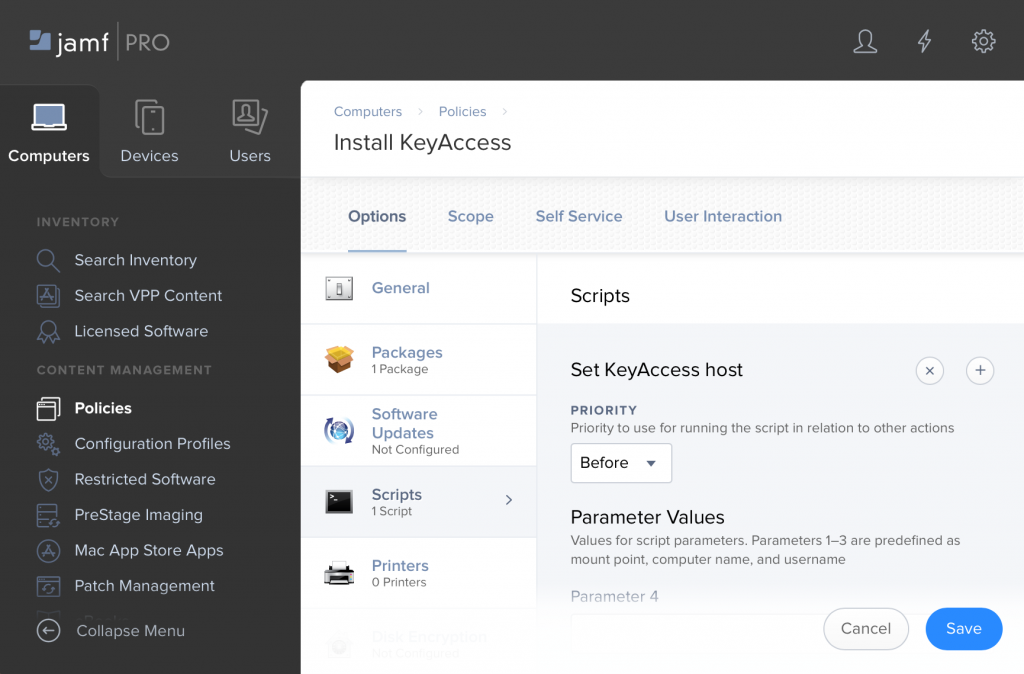
As with any Jamf policy, you will choose a scope. The only other step is to create a script in Jamf that sets the KeyServer address. The contents of the script is just:
defaults write /Library/Preferences/com.sassafras.KeyAccess host keyserver.myorg.org
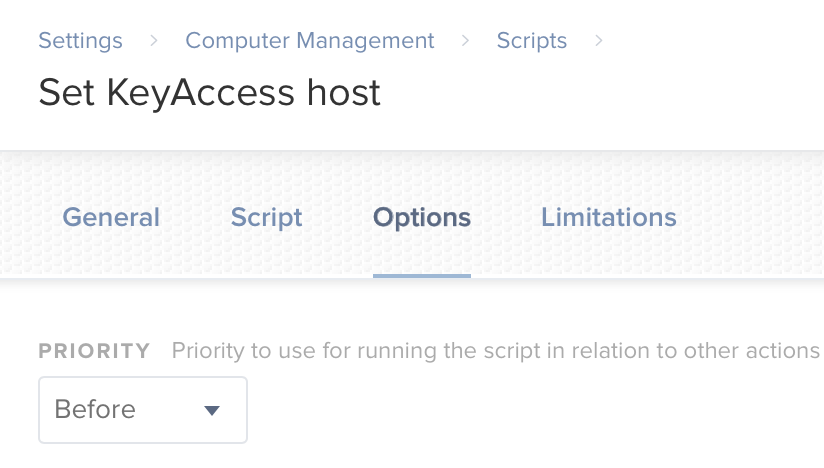
and the script uses the default priority of “before”, so that the host will already be set the first time that KeyAccess starts. Generally this is all that is needed for a basic install. See also the main Client Deployment article for more details and other notes about MacOS. The install will happen silently, and we’ve specified the KeyServer address which is the only important configuration or customization.
The Issue
If we leave it there, the issue is the user will get a message like this one the first time they run any browser:
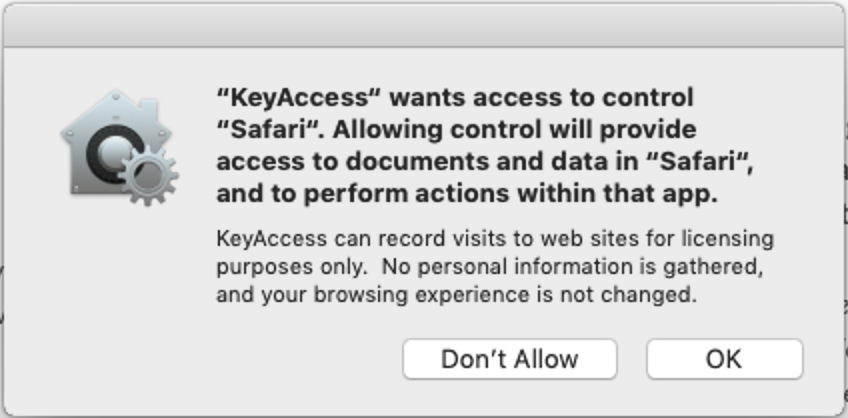
This type of dialog is not unique to KeyAccess, but it's certainly an issue for URL tracking. Here are the two quick ways to remove these dialogs on Mojave.
PPPC File
First option, you can set up a Configuration Policy in Jamf to deploy a Privacy Preferences Policy Control which specifies that KeyAccess should be able to communicate with each of the major browsers. You can download an example PPPC file attached to this article.
Note that this is only an example. Technology changes. Browsers change rapidly. We do not purposefully maintain this file but will venture to update from time to time. This means that a browser may change security identities in a way that requires you to change your deployment. This is between the customer and the browser, we are only providing reference here. That said, note there are past and current example files attached here so grab the latest one!
Upload it when creating your Configuration Profile. Most likely you’ll apply it at the Computer level.
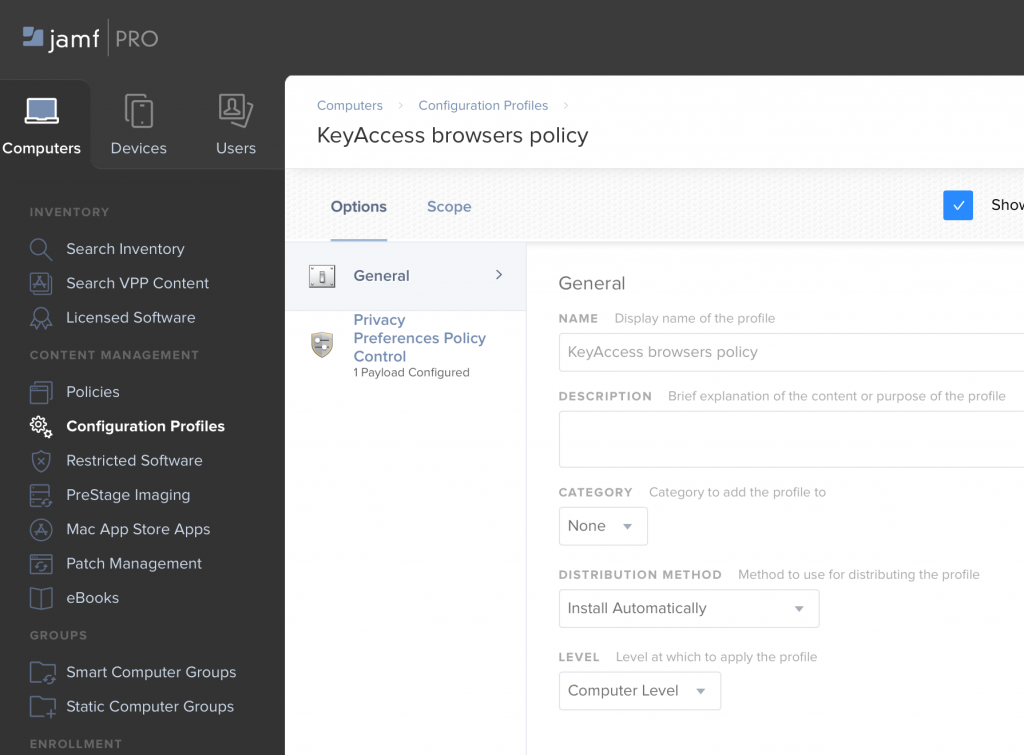
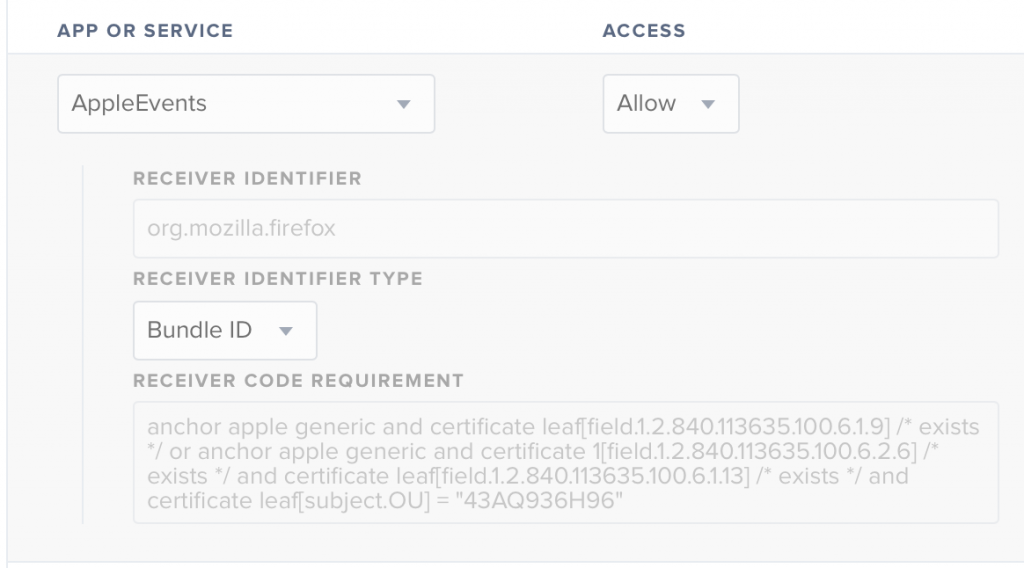
After uploading, if you examine it you’ll see that it just specifies that KeyAccess should be allowed to send AppleEvents to each major browser, e.g.:
Disable Tracking
As an alternative, you might decide that you don’t need to track any URLs and would like to disable this functionality entirely on the client. Most customers these days want to track URLs for SaaS products, but you may not have that use case. To disable tracking, modify the script that sets the KeyServer address, and add a second defaults write:
defaults write /Library/Preferences/com.sassafras.KeyAccess host keyserver.myorg.org

sudo defaults write /Library/Preferences/com.sassafras.KeyAccess nourl 1
We recommend leaving URL tracking on, and advise thinking about how you might use it. It is likely that you are paying for cloud services and it would be useful to know who is accessing those services and how frequently. You might also configure tracking for any websites created and maintained by your internal IT team, to determine if there is value in spending development resources on those pages.